
MISSION INTRO
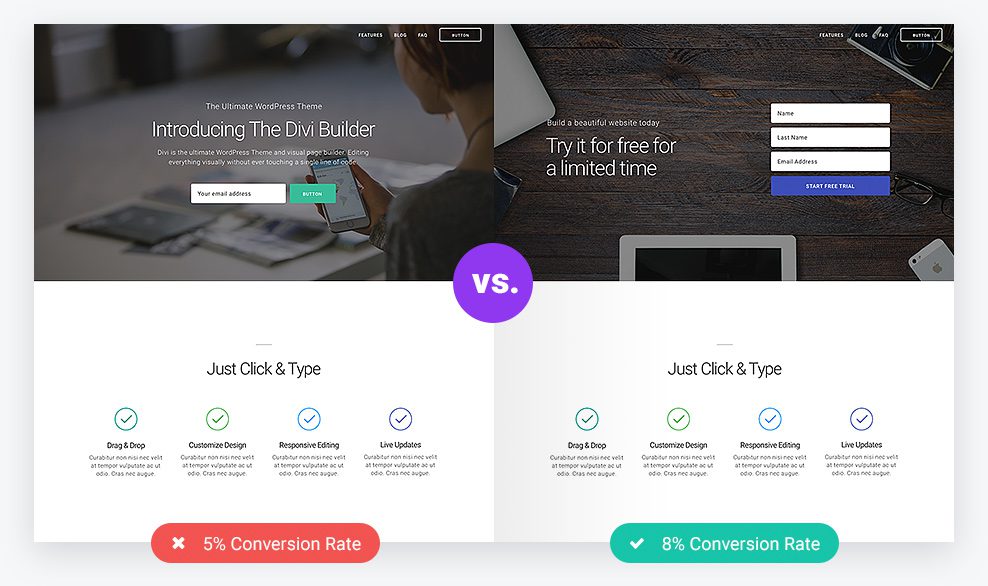
With fifteen successful missions behind you, it’s time to start testing your ShareHaus Coffee business website effectivness on motivating the customers take an action. cultivating an online presence. This mission is designed to help you engage with a larger network and attract new customers. We’re here to empower you every step of the way as you harness the power of digital to broaden your reach and solidify your brand.
MISSION TIMELINES:
This mission should be completed within two weeks, providing ample time to create the ideal Facebook page and begin sharing your unique coffee journey
Easy A/B Testing with Divi Leads The Divi Split Test Feature
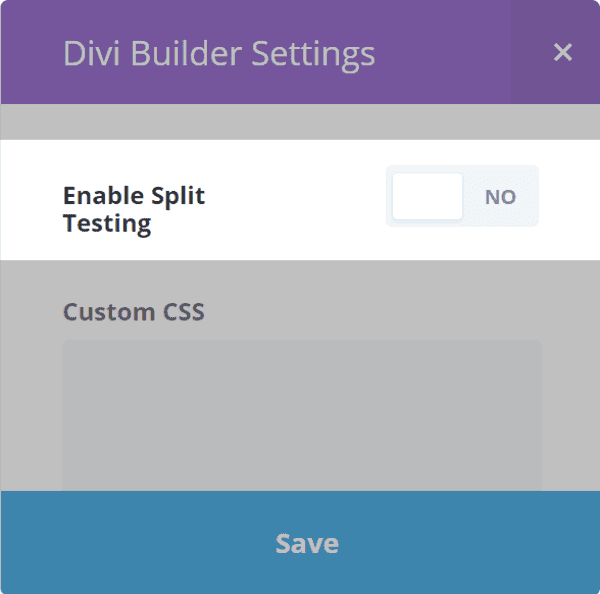
Divi Leads adds new features to your Divi Builder. When you select to use the Divi Builder you’ll see a new menu located in the upper right corner of the Divi Builder. This is where you’ll find the A/B testing feature.
You don’t have to have your layout before enabling the split test. You can use this on layouts that you’ve already created or create a new layout as you go. When you’re ready, just open the Divi Builder Settings and click Enable Split Testing then Save.
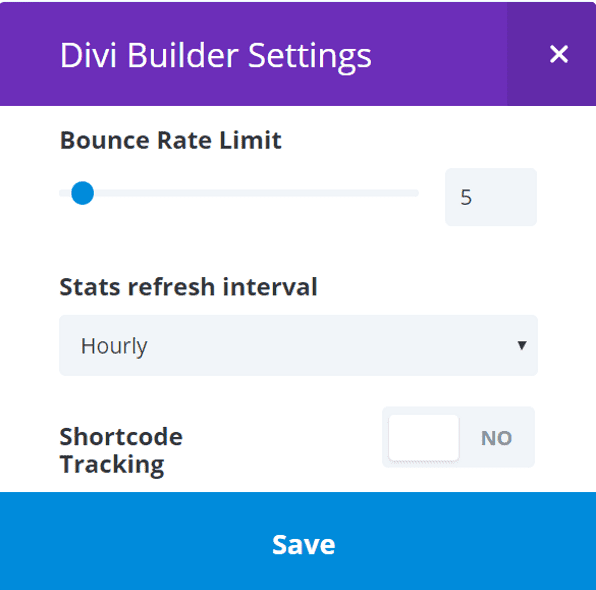
When enabled you’ll have a few new features at your disposal: You can set your bounce rate limit (which determines how many bounces you’ll allow the test to have), you can choose to reset the counter hourly or daily, and you can also use a shortcode to track end goal conversions–such as how many people who converted on a given page made it all the way through your funnel.
If you’re still fuzzy on the tracking shortcode, don’t worry, we’ve got a follow up tutorial coming on it soon. And in the meantime you can check out the official documentation for a bit more info.)
The Divi Split Test Feature layout
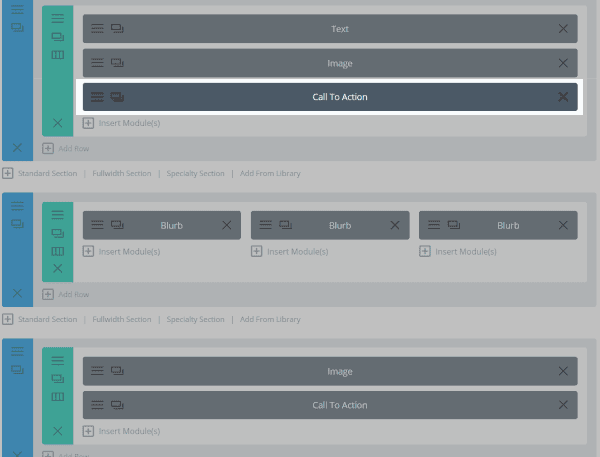
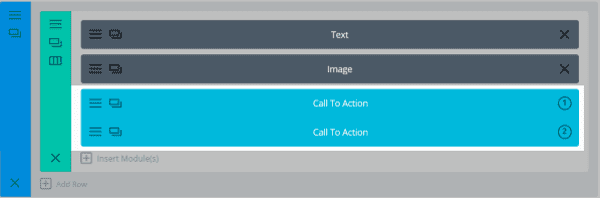
Next you’ll be prompted to choose a section, row, or module to split test. For this test, I loaded a landing page from the library and selected the top call to action module.
Notice how after selection there are two call to action modules. The first one is the original so go into the settings of the second call to action module to make some changes.
When you done making changes all you had to do to activate the split test was publish the page. If your page is already published, you’ll just need to click the update button.
AS A DEMONSTRATION EXAPMPLE
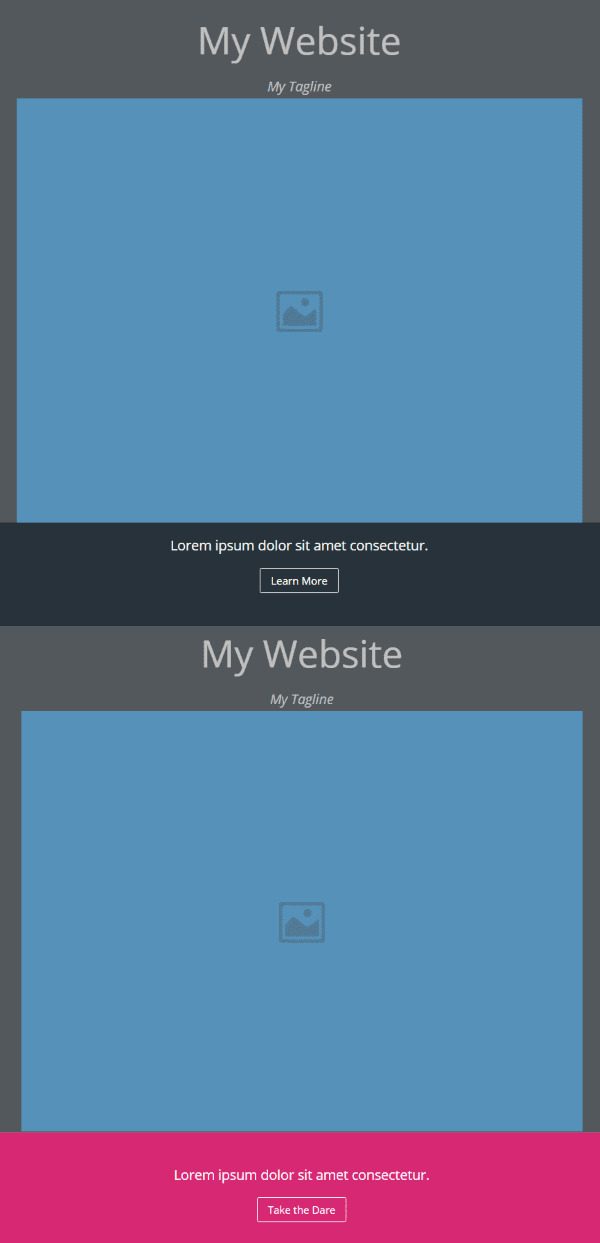
First CTA
leave the first module with all of the default settings: Learn More for the button text, no background color, and Light for the text color.
Second CTA
For the second module, make some changes by making it to a little more risky and playful. Changed the text to say Take the Dare and used a magenta background color. I left the text color Light.
Then published the page and I now have an A/B test setup and running. Divi is now gathering data about the test.
Stats
There is a stats counter button added to the top of the Divi Builder (it looks like three animated vertical bars). Clicking it will open the counter with the data that’s been collected for the A/B test and it gives you charts, graphs, and percentages to help you make decisions about your test. Hit the refresh button to update the stats.
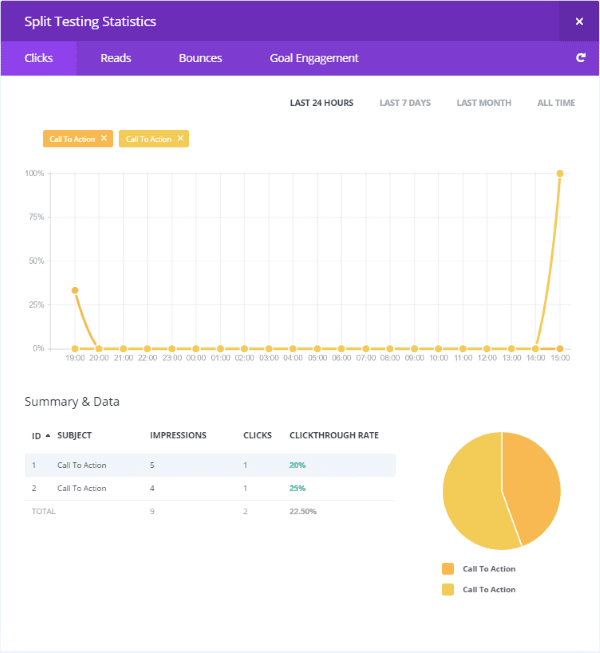
You’ll see a chart that compares the performance of each test. It will show you the number of clicks, reads, bounces, and goal engagement. You can see just one of the calls to action or both compared. You can see the stats for the last 24 hours, last 7 days, last month, or all time.
Analyzing the Information
It should be noted here that this test and the data above are purely for the sake of demonstration and are not nearly adequate for actually choosing a split test winner. For that to happen we would need to run this test long enough to ensure that our results are statistically significant. So as long as we’re all clear on that, we can proceed.
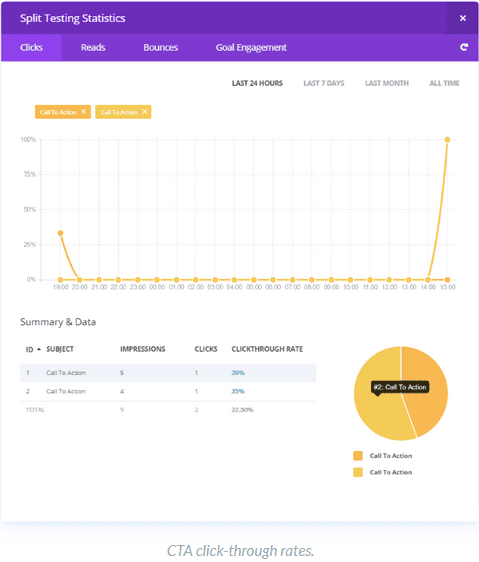
In the example above, Module #2 had more clicks per impression. It had 4 impressions and 1 click, giving it a 25% click-through rate. #1 had 5 impressions with 1 click, giving it a 20% click-through rate.
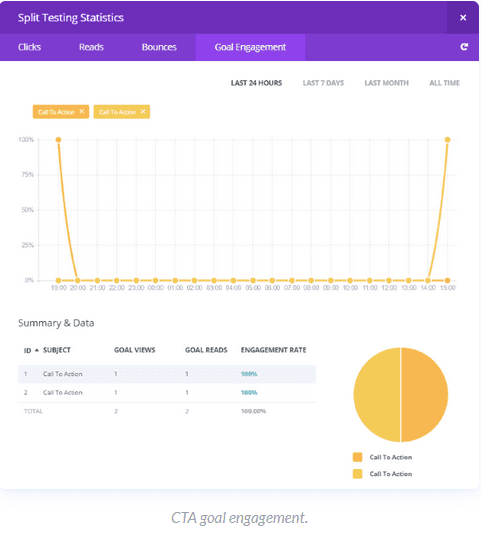
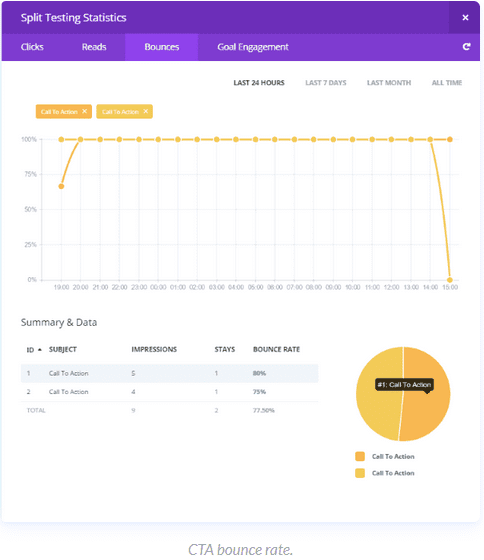
Both had 100% goal engagement, meaning both were utilized during the test.
It should be noted though that both for this test and the next, there is not nearly enough data to draw solid conclusions.
Ending the Test
When you end the test you’ll be asked to choose one of the variations to remain active. It will delete the other variation. You can’t undo this so make sure you’ve chosen wisely. Simply click on the variation you want and your layout becomes a normal Divi layout with the choice you made.
Rows
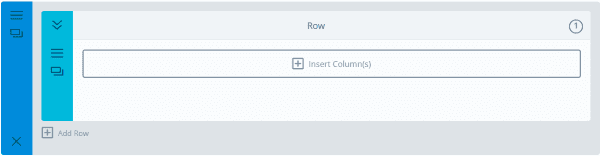
To create a split test for rows click on the row when it asks you to choose your test object. Testing rows allows you to test multiple modules and try them in different orders or with different styles. Notice the “1” in the upper right corner. This is the first variation of the row. In the upper left corner there is an icon with two downward arrows. Selecting this will display the second variation of the row. Now I just need to choose what the tests will be and place the modules. For this one, I’m creating the layout as I go, so I selected the empty row.
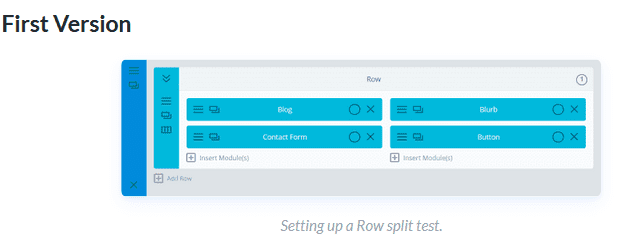
For the first version of the row I placed a blog, blurb, contact form, and a button. I left their colors at default.
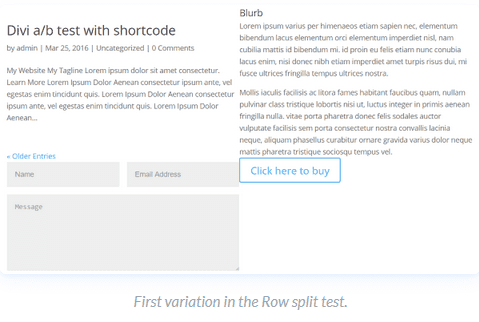
For the second version of the row I reverse the order of the blurb and blog, and then changed the colors of the contact form and button. I also changed the text of the button.
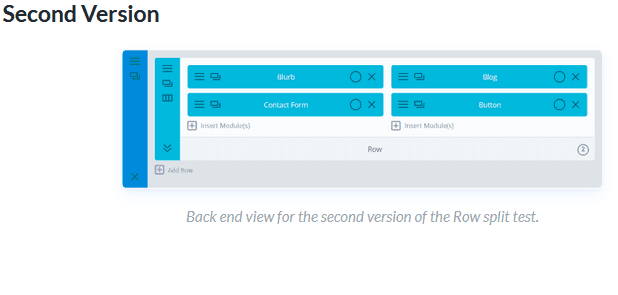
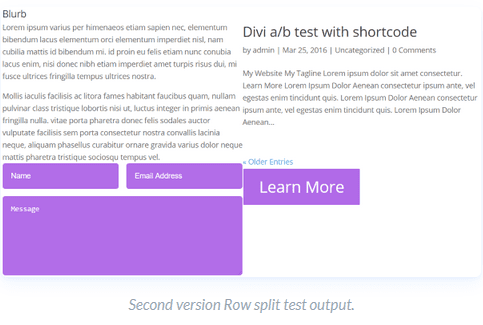
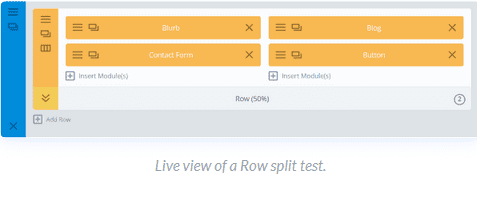
Published the page and now you have an A/B test setup and running. The colors of the modules will change and you’ll see a percentage.
The only difference is location and colors. This is a simple test but it will show you if readers will respond to your blog link differently or if the colors catch their attention better. Once you’ve learned if they like color better you can run the test again using a different color to see if there’s any change in reader response.
FOR MORE TIPS AND THOUGHTS FOR A/B Testing.

Recent Comments